Composite beam design
Introduction
Composite beam design uses Oasys Compos to enable the design of multiple composite beams, incorporating various slab thicknesses and shear stud arrangements. Due to different country codes and section libraries, a country code must always be defined when analysing composite beams. Full details of Compos are available in the User Manual https://www.oasys-software.com/help/compos/8.6/compos8.6_manual.pdf
Video tutorial
The following video describes how to set up and use the composite member design module in GSA. Topics covered in this video include:
Setting up member properties
Oasys GSA - 10.3 Composite beam Design
Setting up the design
-
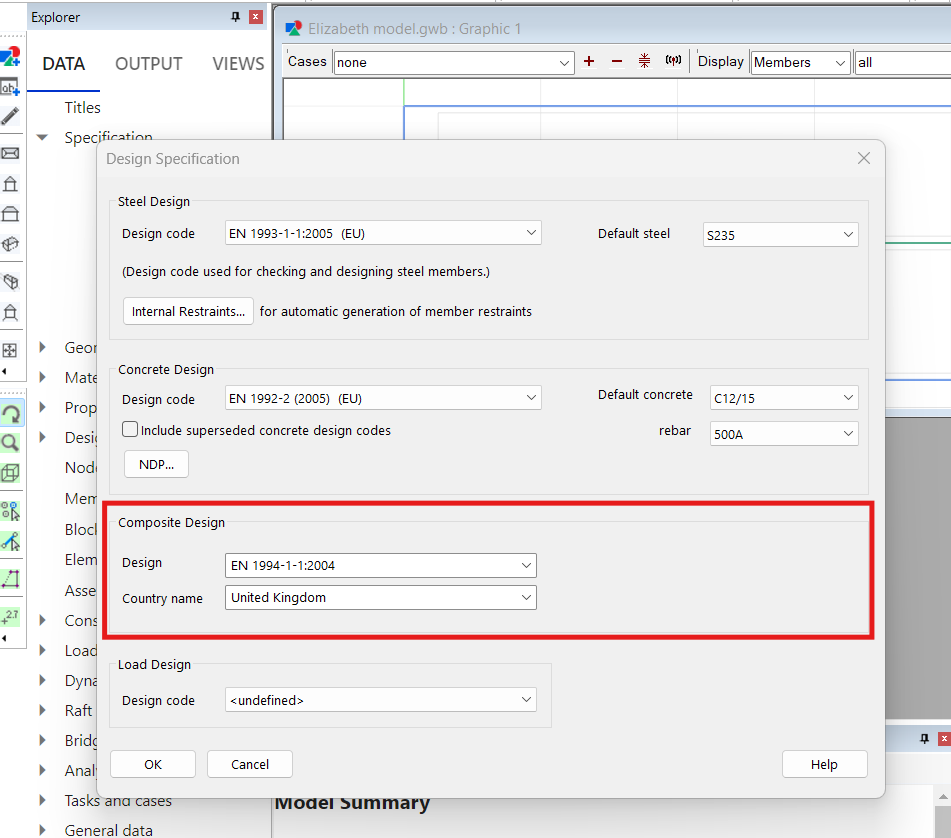
From the Explorer pane navigate to Data > Specifications > Design.
-
Select the Composite design code from the menu.
-
Open Materials > Concrete and add the appropriate grade if necessary.
-
Open Materials > Steel and add the appropriate grade if necessary.
Setting up the 1D members and associated shear studs
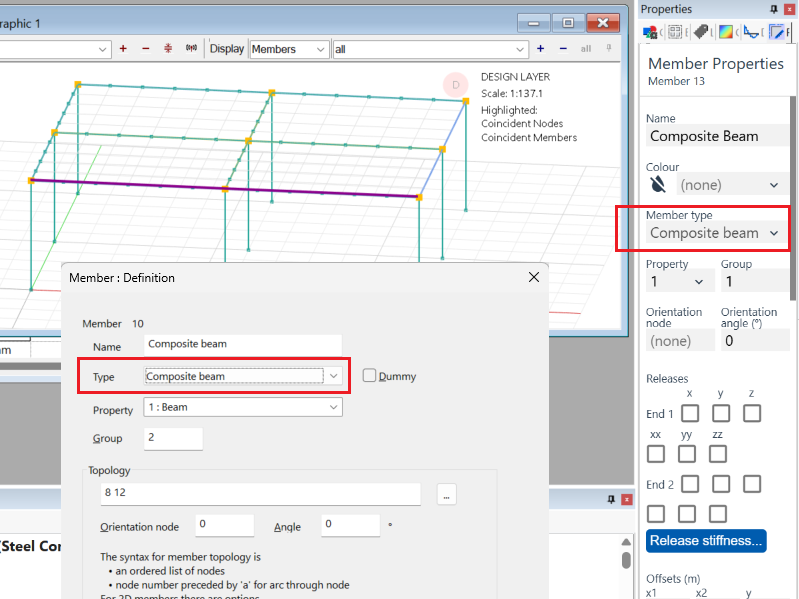
- Member: Definition - Ensure that the member type is set to Composite beam (Properties pane or Member definition wizard).
- Open Properties > Section Library and add the beam sections from the appropriate catalogue. Add the correct steel grade (if necessary)
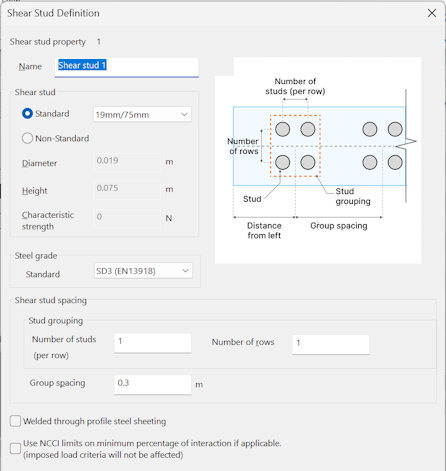
- Open Properties > Shear Studs and define the placement of the studs. This is most easily done by double-clicking any cell in the table to open the wizard.
Setting up the 2D members (slabs)
-
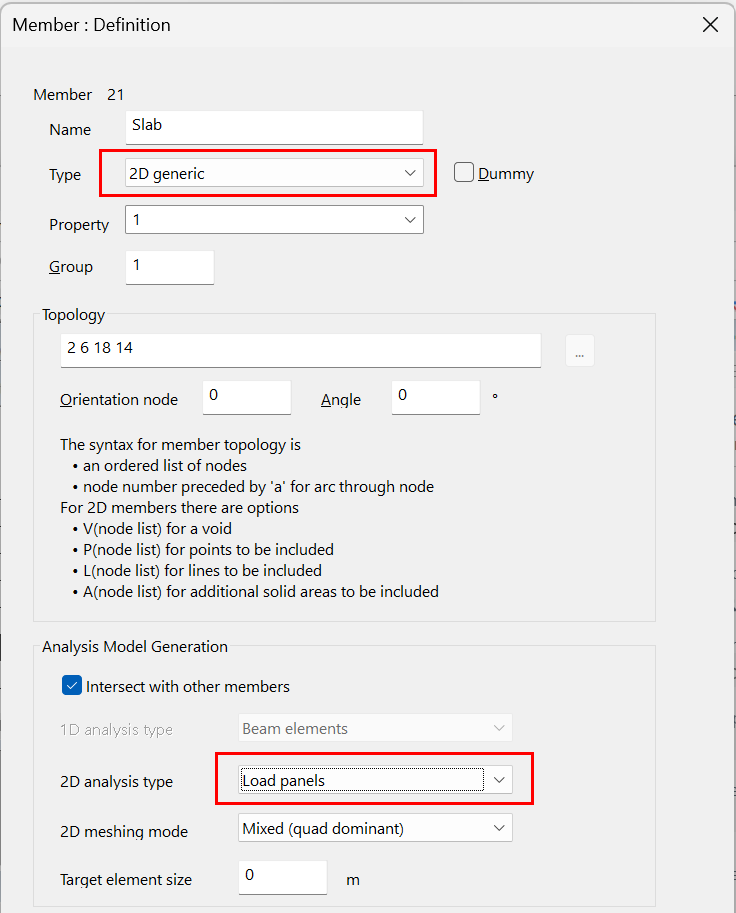
Member: Definition - Set the 2D member type to Generic (Properties pane or Member definition wizard). Set the 2D Analysis type to Load panels.
-
Open Properties > 2D Properties and define the load panels. Check the physical properties for the slabs associated with Composite steel beams, the concrete material and grade, and the physical properties for the slab, whether solid or decking, and the load distribution type.
-
Analyse the model and create an Ultimate limit state combination or Envelope.
Create a new composite design task:
Tip: Design tasks can only be created after a static analysis has run. :::
-
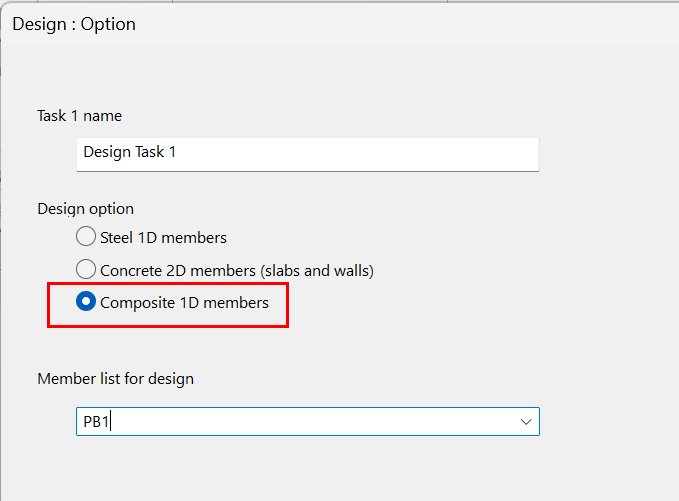
Start by selecting the Design > New design task from the Commands at the top. The Design: Option dialog opens.
-
Select Composite 1D members under Design options.
-
Under Member list select ONLY those beams that have associated Compos slabs and have Composite beam properties.
Tip:
Any non-composite members included in the list will not be passed to Compos and a warning message will be generated. :::
- Select Next.
Specifying loads
- Choose from the available Load Combinations for ULS dead and live loads and SLS (optional).
When preparing files for Compos, GSA will automatically apply optional SLS values when available in the chosen code. You therefore need to ensure that the loads are not duplicated by re-adding them in the Compos file(s).
-
Set the Deflection limits according to your requirements. These limits are passed directly to Compos.
-
Set the Construction Method to Propped or Unpropped as appropriate.
-
Select Next.
Generating Compos files
- Select Check to prompt the creation of Compos files.
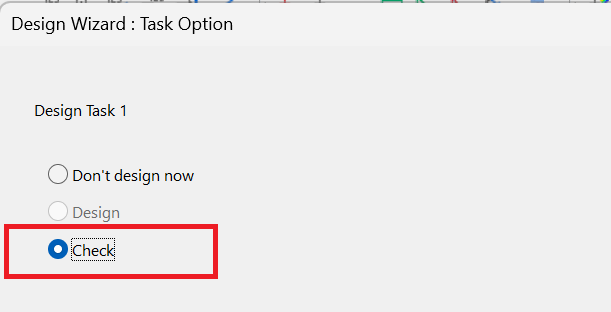
- Click Finish to create the Compos files.
One file will be created for each composite member in the design task. They will be created in a sub-folder named < GSA model name >
_compos_files.
Each file will be checked by Compos according to the specified design code. Messages generated from Compos will be forwarded to the GSA report window.
Review the compos files created for detailed results:
You can validate the results of each 1D Member by opening the associated Compos file from GSA or by opening its Composite beam file directly in Compos.
From GSA
-
From a GSA graphic view, right click on the 1D Composite Member and select Open Compos file from the context menu. (This option is only available if a composite design task has been run)
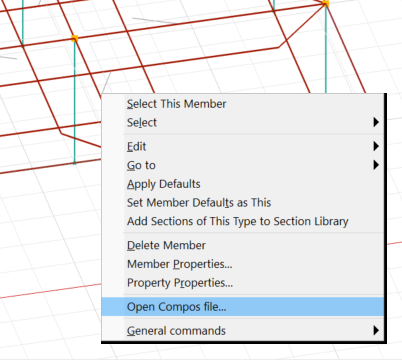
The file for the corresponding Composite beam will be opened in an instance of Compos.
From Compos
- Start Compos. The list of newly generated files will be visible in the recent files list.
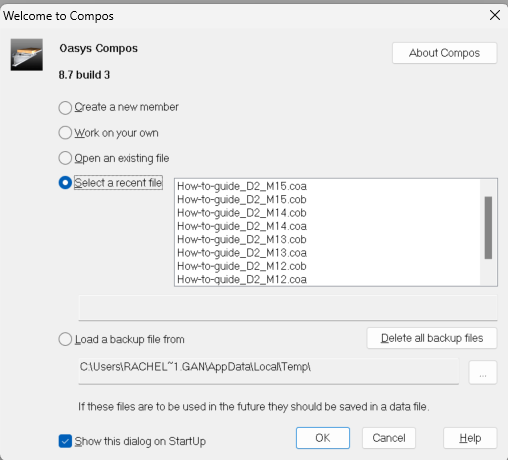
If you make changes in the Compos files, this has no effect on the GSA model. Desired changes must be made in the GSA model and the Compos files can then be re-generated.