Overview of GSA interface
This entry introduces the GSA interface and the concept of layers in GSA.
GSA Interface
The image below shows the interface, with key components highlighted.
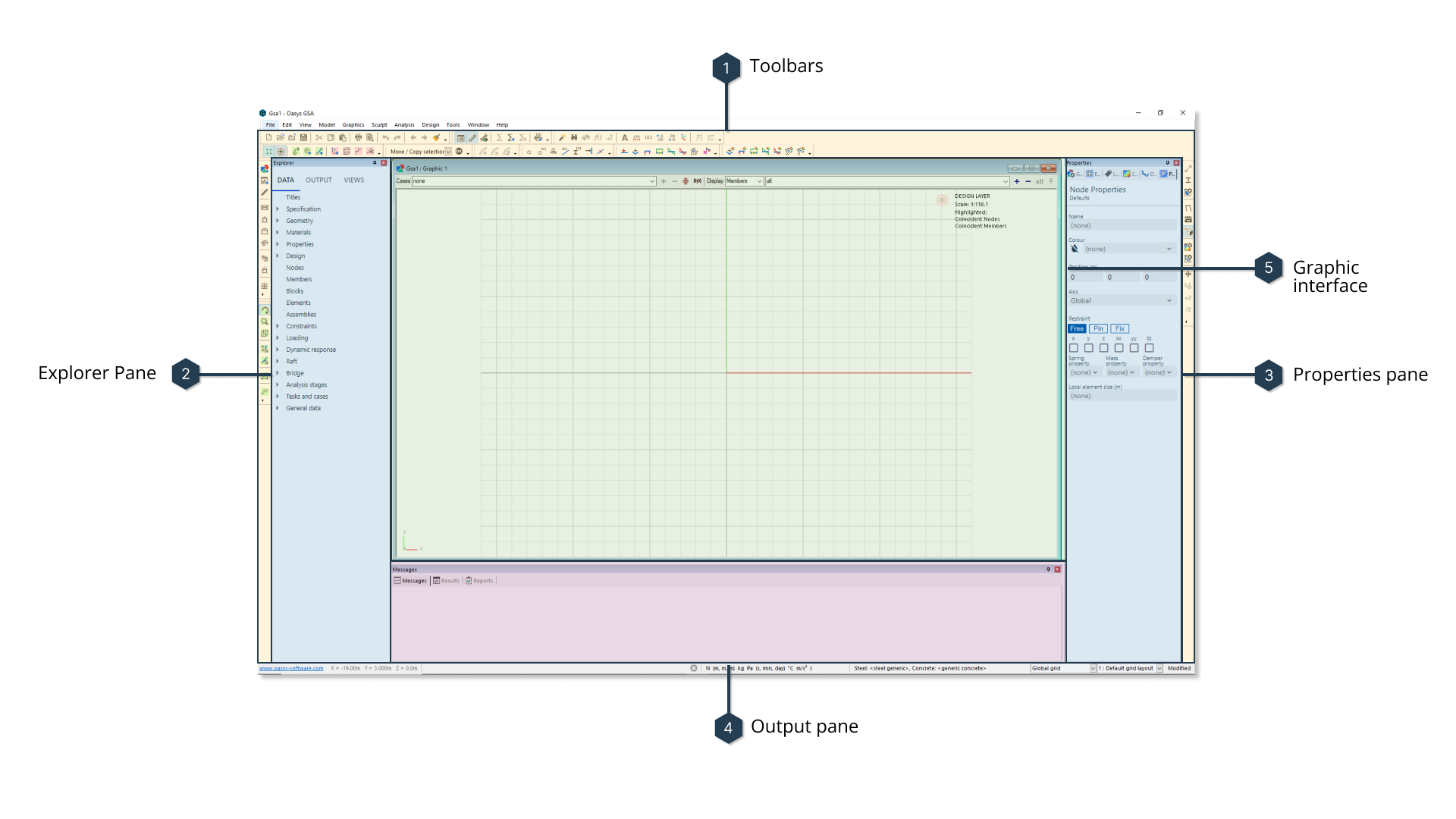
These include:
- Toolbars: A shortcut to frequently used commands.
- Explorer pane: Where your model's data is contained.
- Properties pane: Edit your model's data here.
- Output pane: View messages, results and reports associated with your model.
- Graphic interface: Your model's structure is displayed here.
Concept of layers in GSA
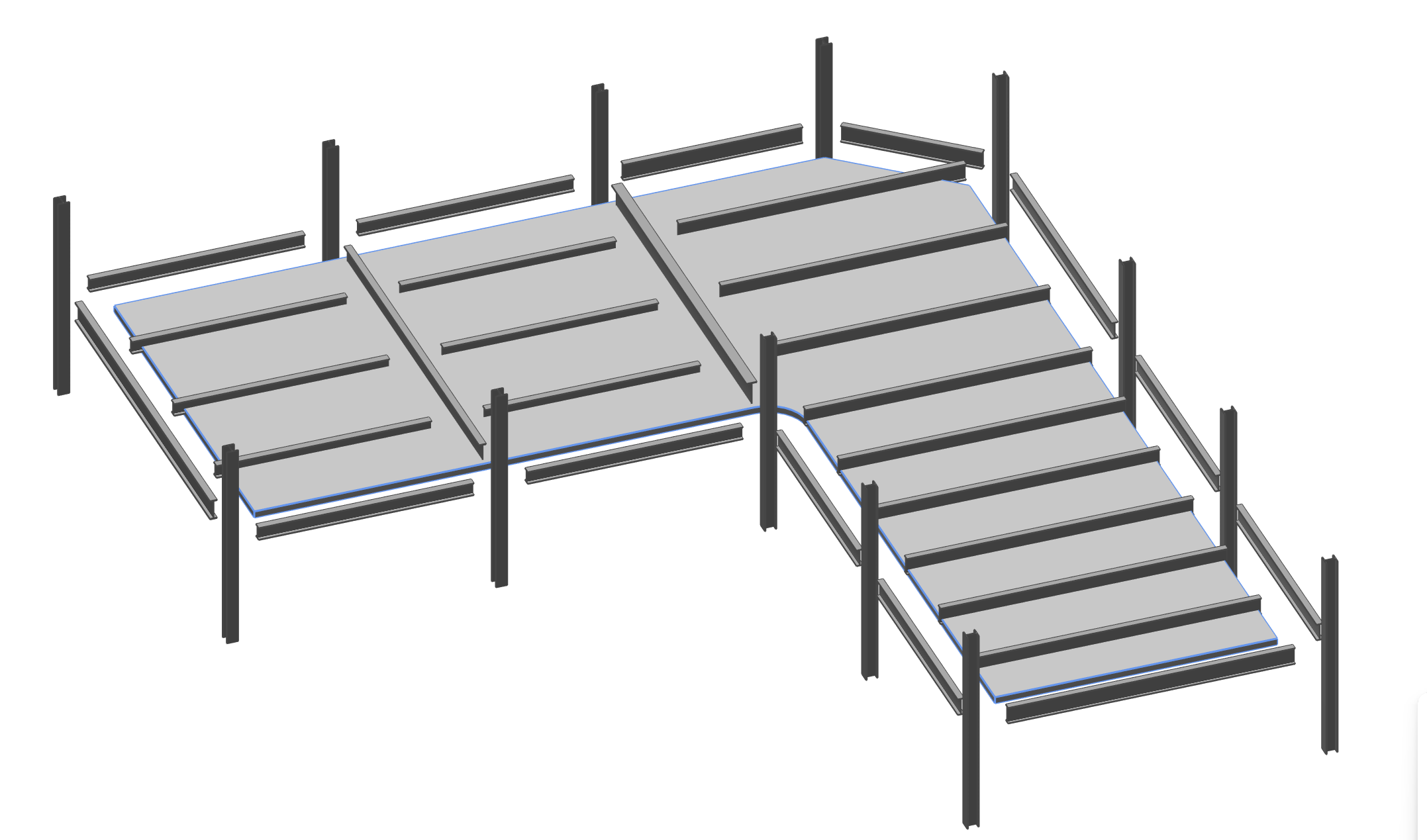
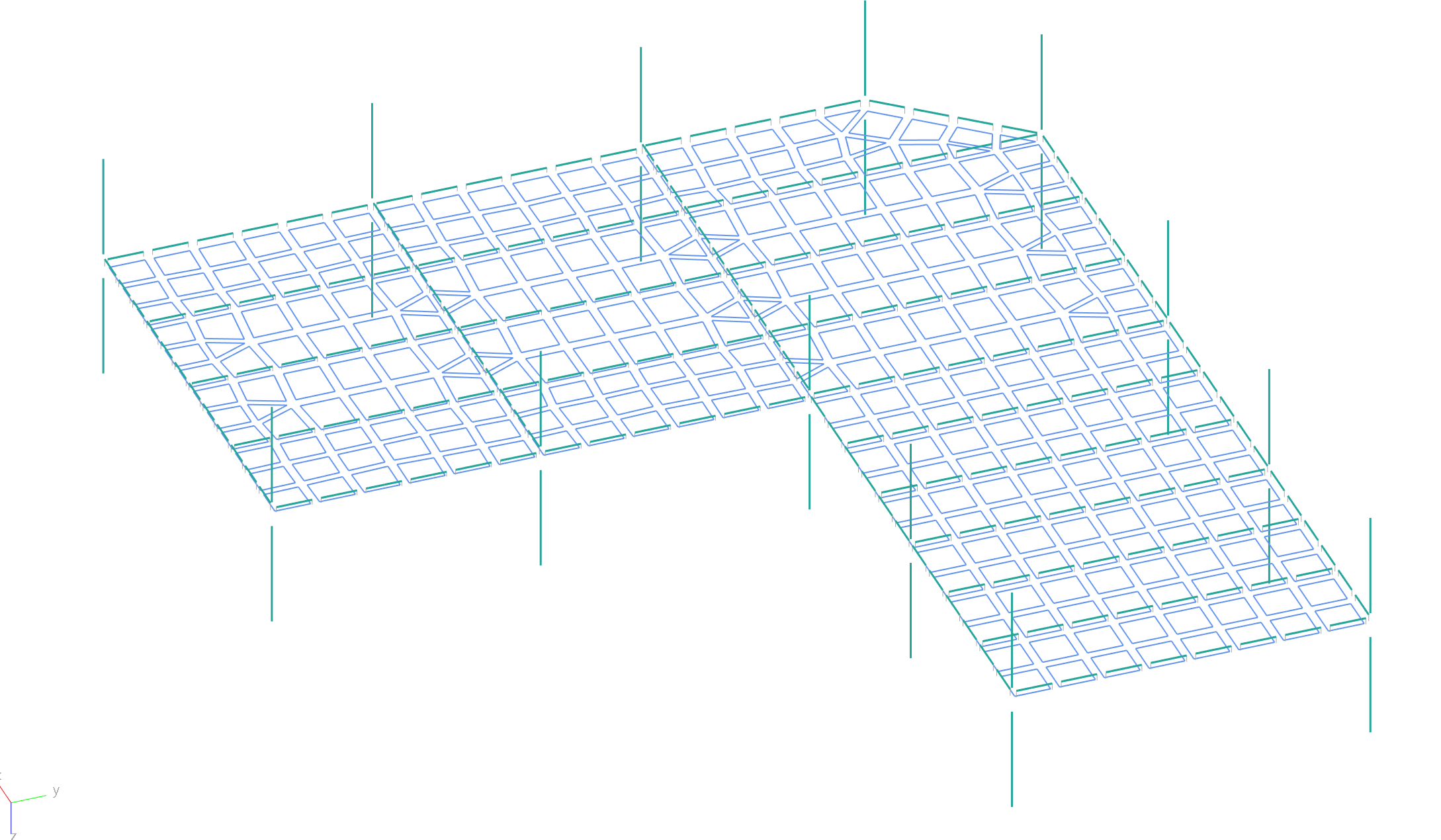
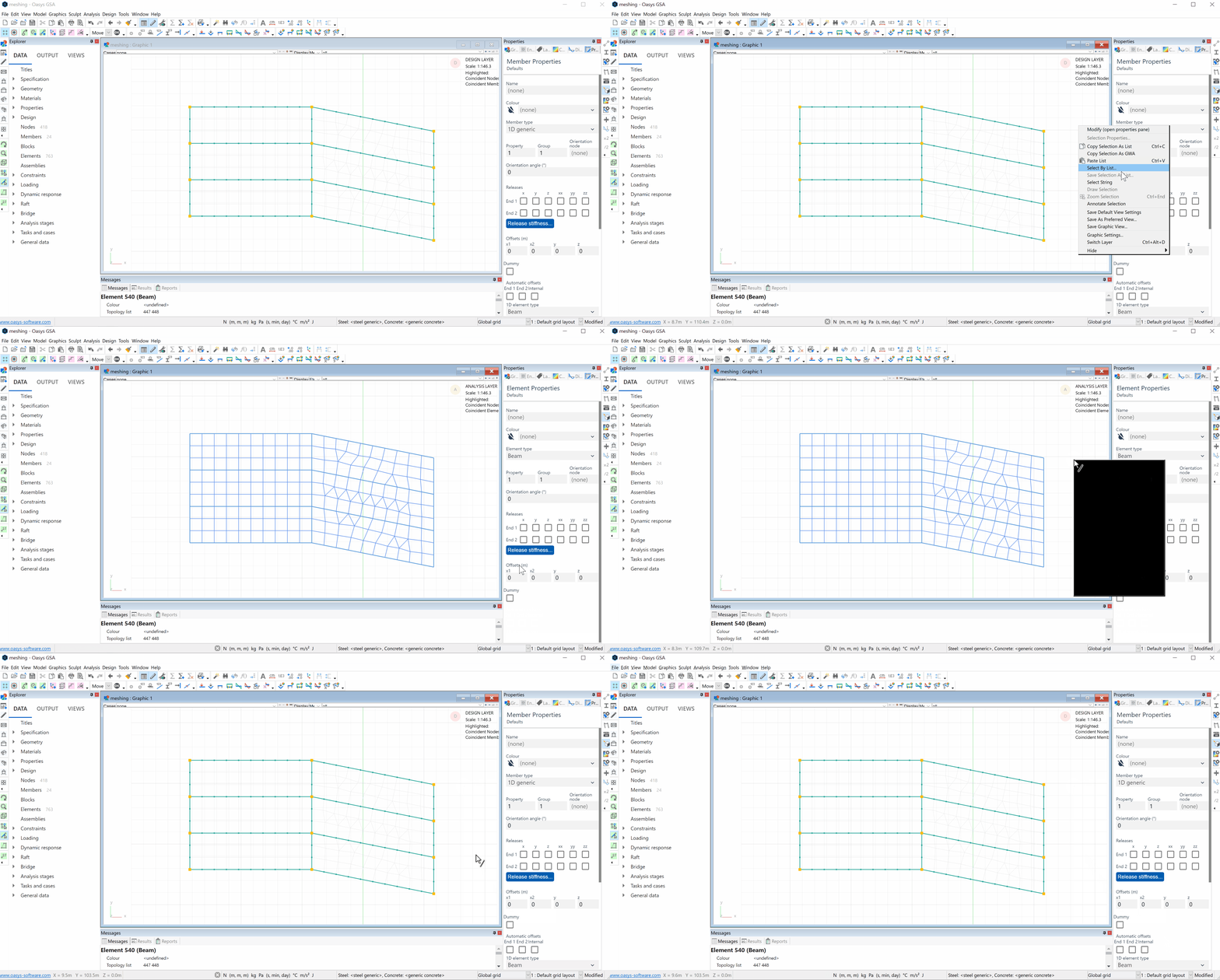
There are two representations of the same geometric entity in GSA. BIM members are represented in the Design layer while finite elements of the same entity can be viewed in the Analysis layer.
| Design layer | Analysis layer |
|---|---|
 |  |
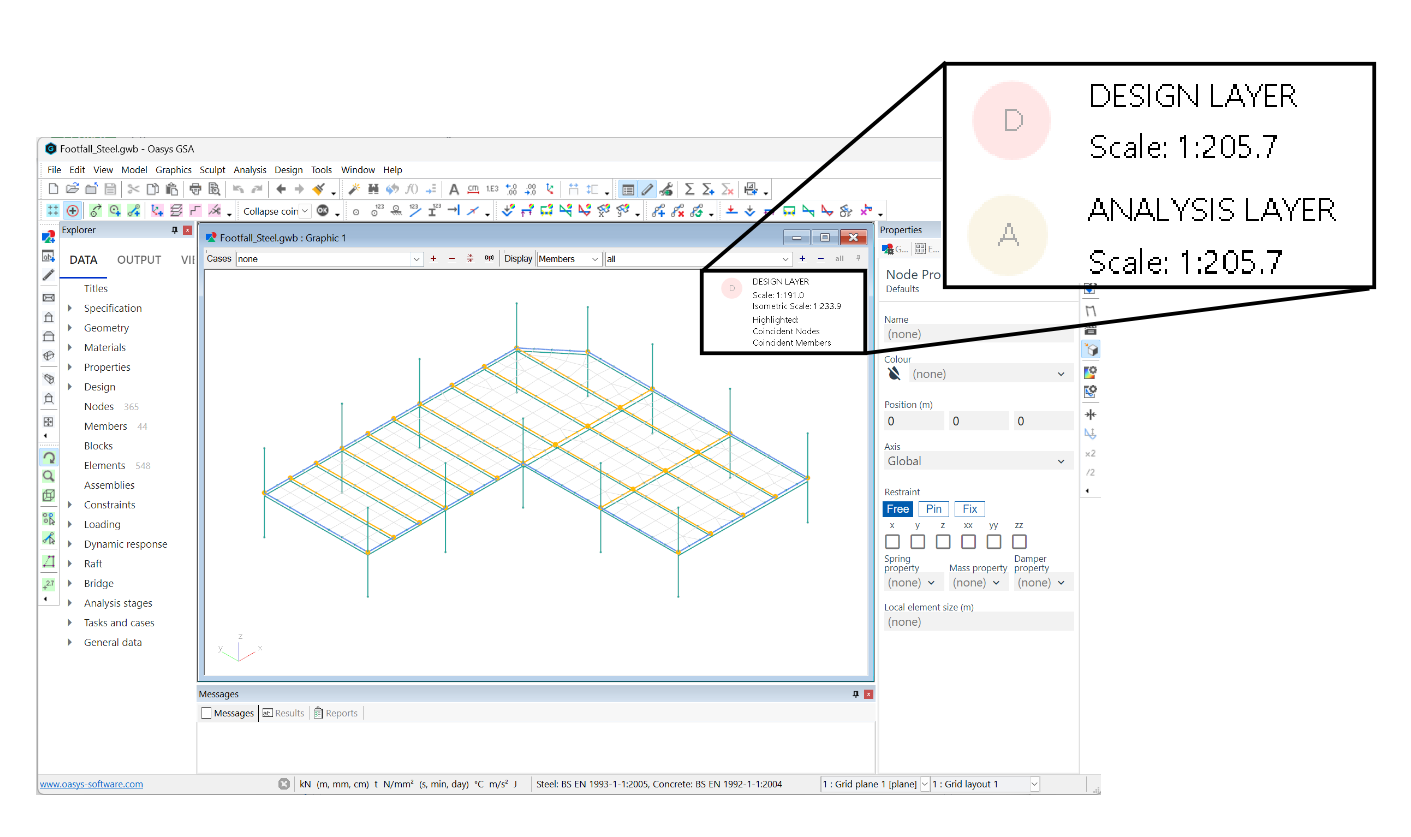
To identify the layer you are currently in, look at the top right corner of the graphics window. To change layers, right click anywhere in the window, and select Switch layer. You can also use the keyboard shortcut Ctrl+Alt+D to toggle between the layers.
For a more comprehensive account of the interface, keyboard shortcuts, and Design and Analysis layers, see the Explanations entries: